Summary
A remote MCP server is a tool server that runs on the internet, at an https address, and gives AI agents its tools over the Model Context Protocol. Unlike a local server, nothing runs on your machine: any agent platform that can reach the address can use it. This guide explains remote versus local, then shows how an admin adds one to Arclyx, who can use it, how it signs in, and what keeps it safe to give an agent. It's about agents, not coding tools: Claude Code, Cursor and VS Code each have their own setup.
Key Takeaways
- Remote means hosted, at a URL. A remote MCP server runs as its own service and answers at one https address; a local server is started on your machine by the app that uses it 1.
- Admins add servers; agents use their tools. In Arclyx an admin adds a server once, and agents use its tools like any built-in connector.
- You choose who it's for. One server for the whole organization, or one each person connects for themselves, with four ways to sign in.
- The address is checked, then checked again. It must be https and resolve to a public address when saved, and every connection to it is screened again.
- Agents get only the tools you grant. A server's tools aren't handed to every agent; each agent gets the ones its job needs.
- Treat a server's output as untrusted. Arclyx scans its tool descriptions and results for prompt-injection patterns, and a dry run holds any tool that might write.
What is a remote MCP server?
A remote MCP server is a service on the internet that offers tools to AI agents using the Model Context Protocol (MCP), an open standard. It answers at one https address, such as https://example.com/mcp, and any MCP client that can reach that address and sign in can list its tools and call them. The service does the work; the agent decides when to call it.
"Remote MCP server URL" means exactly that address: the single endpoint the protocol's HTTP transport posts every message to 1. If a tool you use offers a remote MCP server, its documentation gives you the URL and says how to sign in, usually a key or a sign-in with your account.
MCP is also how Arclyx's own connectors work: every built-in connector offers its tools over MCP, which is why a server you add sits beside them and works the same way. The connectors page lists the built-in ones.
Remote vs local MCP servers: what's the difference?
A local MCP server runs on your computer: the app that uses it starts it as a program and talks to it directly. A remote MCP server runs somewhere else as its own service and is reached over the internet, so many people and many agents can use one server. The MCP specification calls these the stdio and Streamable HTTP transports 1.
| Local MCP server | Remote MCP server | |
|---|---|---|
| Where it runs | On your machine, started by the app | On the internet, as its own service |
| How it's reached | The app talks to the program directly | An https address |
| Who can use it | The app on that one machine | Any client that can reach it and sign in |
| Typical use | Coding tools on a laptop | Agents and apps that run in the cloud |
| Main risk | It runs with your machine's access | It sees what you send it and can return anything |
The MCP security guidance warns that a local server can have direct access to the user's system, which is why clients that install one should show the exact command and ask first 2. A cloud agent platform can't start programs on your laptop, so it uses remote servers. Arclyx connects to servers over Streamable HTTP.
How do you add a remote MCP server in Arclyx?
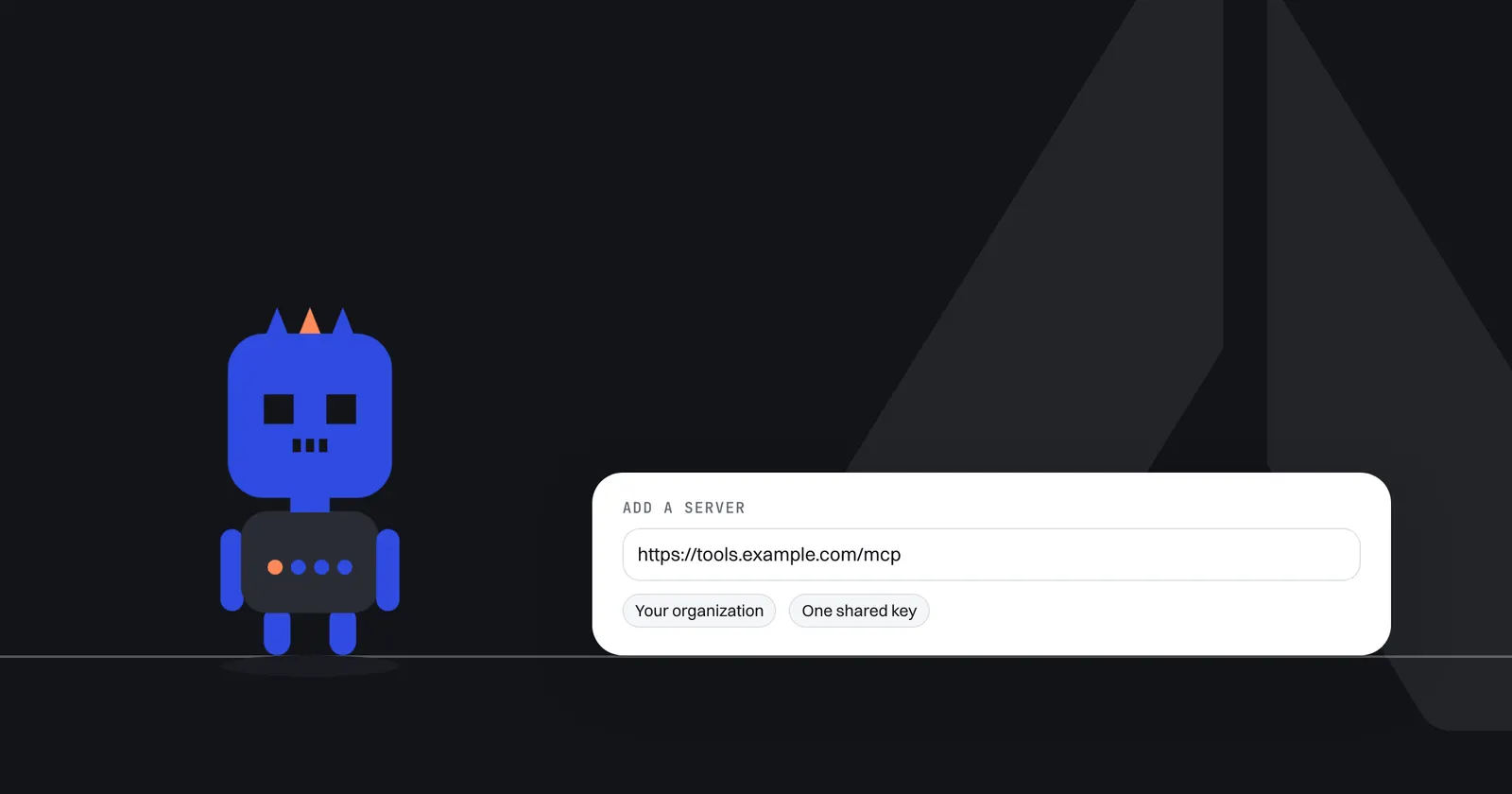
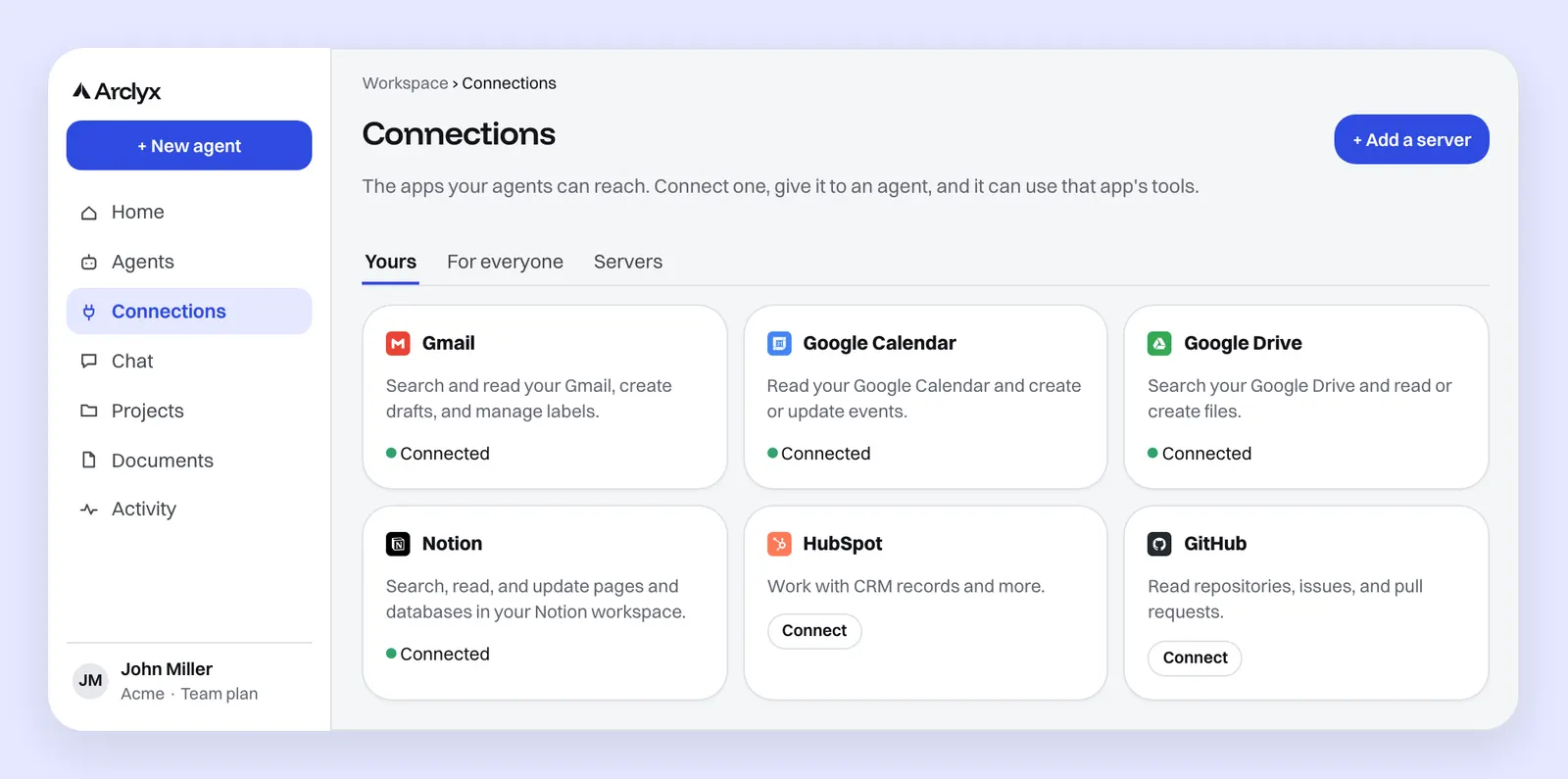
An admin opens Connections, presses Add a server, and fills in a name, the server's https address, who it's for, which agents can use it and how it signs in. Arclyx checks the address, saves any key encrypted, and lists the server's tools once it's added. Members then see the server under Yours on their Connections page.
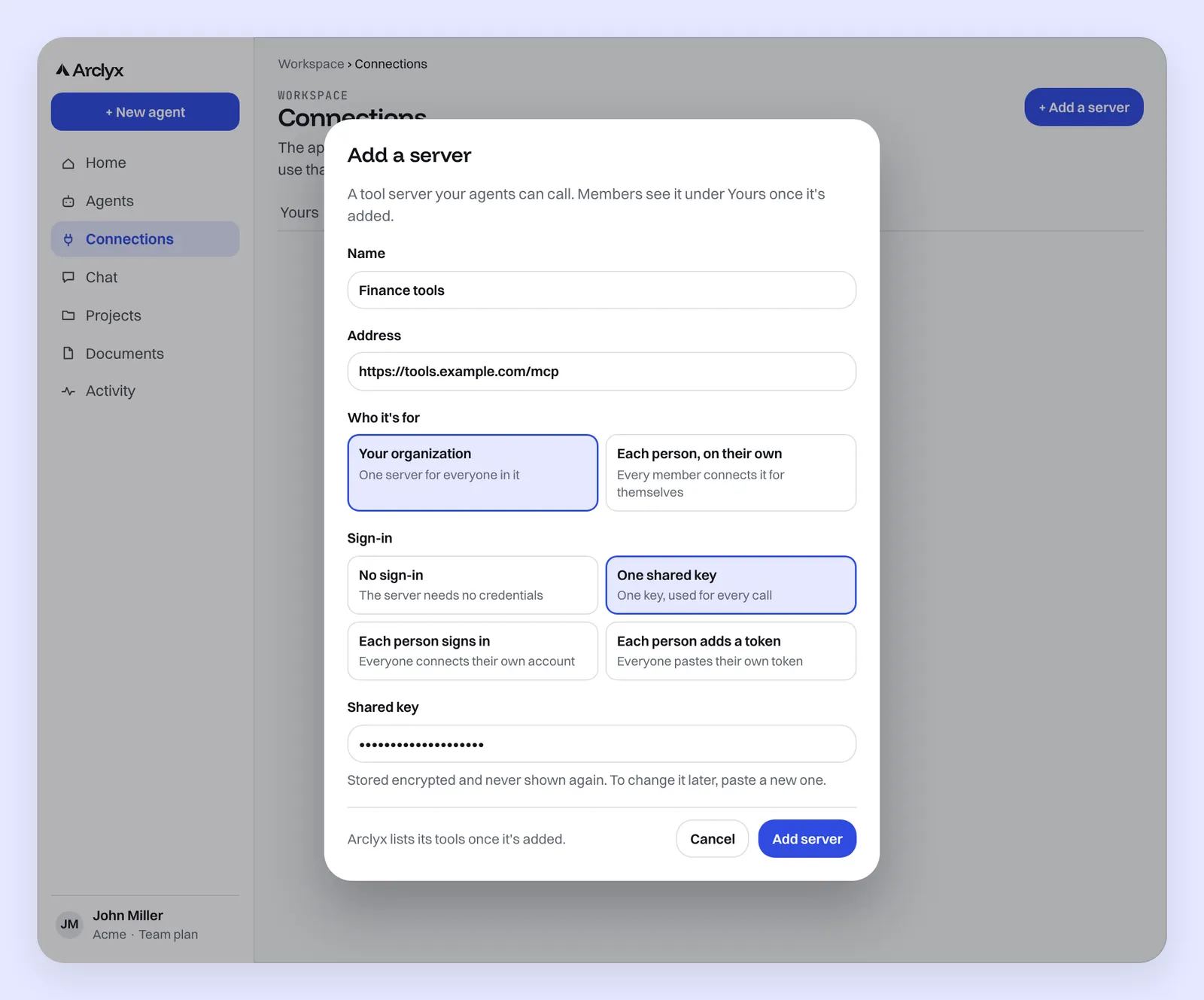
Step by step:
- Name it the way your team will recognise it, such as Finance tools.
- Paste the address. It must start with
https://. - Pick who it's for: your organization, or each person on their own.
- Pick who can use it: Anyone, for personal and organization agents, or Organization agents only.
- Pick how it signs in, and paste the key or the app's client ID and secret if it needs one.
- Press Add server. Arclyx lists its tools, and it appears on the Servers tab.
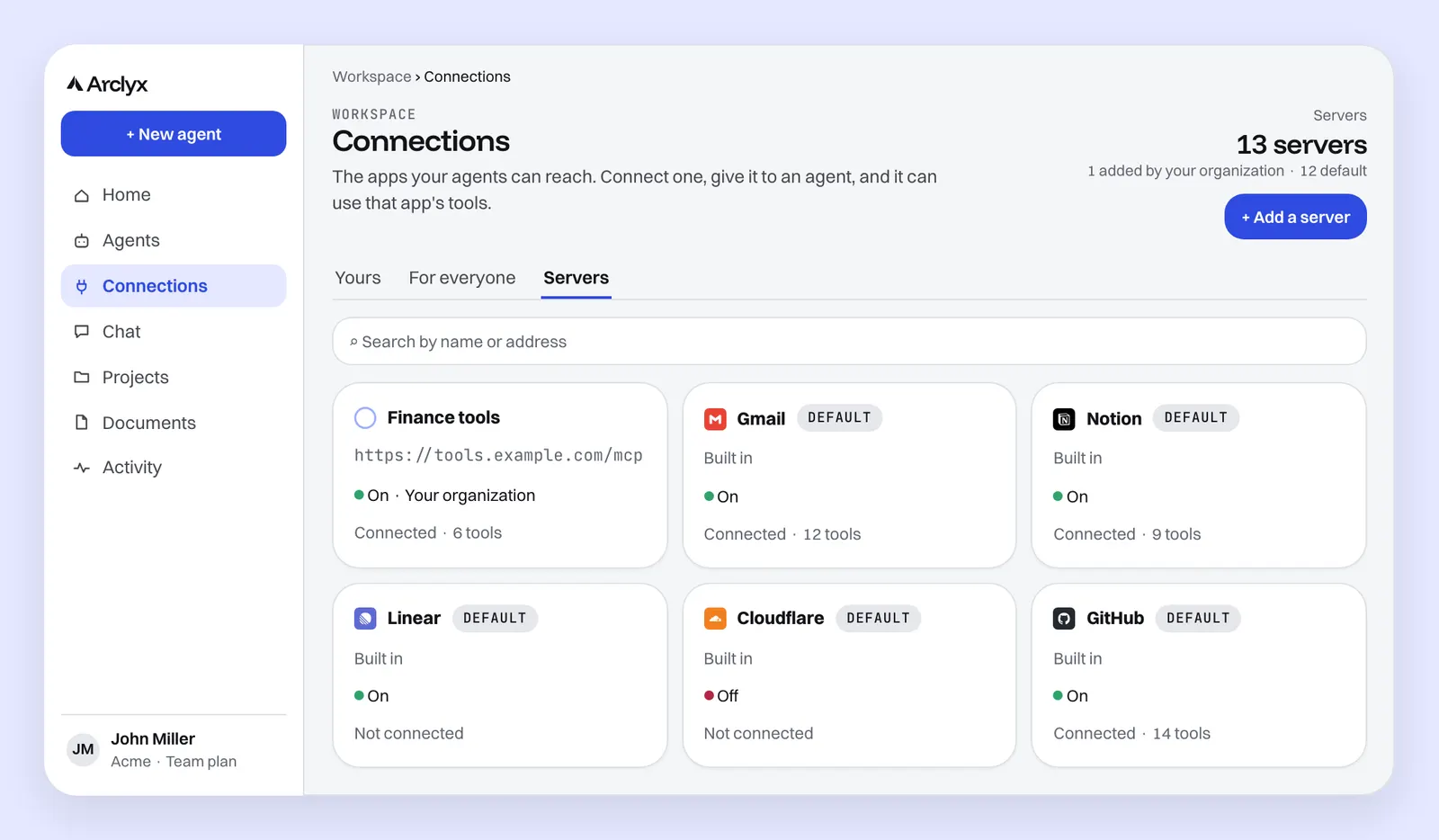
The Servers tab is for admins: every server, added or built in, with whether it's on, connected, and how many tools it offers. Built-in servers carry a Default badge.
Who can use the server: everyone, or each person?
Two settings decide it. "Who it's for" says whose account the server works with: one server for everyone in your organization, or one that each member connects for themselves. "Who can use it" says which agents may call it: Anyone covers personal and organization agents; Organization agents leaves personal agents out.
Pick by what the server reaches:
- Your organization fits a server that reaches shared data the same way for everyone, such as a company knowledge base behind one key.
- Each person, on their own fits a server that reaches each person's own account, so an agent sees only what its person can see.
- Organization agents only keeps a server away from personal agents, for tools you only want shared, admin-built agents to use.
In a Slack channel, where everyone reads the answer, agents use only servers that everyone reaches through the same credentials. Our guide to using a Slack AI agent covers what agents can see there.
How does a server sign in?
Four ways, matching what the server expects: no sign-in, one shared key used for every call, each person signs in with their own account, or each person pastes their own token. A shared key or a client secret is stored encrypted and never shown again; to change it, an admin pastes a new one.
| Sign-in | What it means | Fits |
|---|---|---|
| No sign-in | The server needs no credentials | Public data, such as a docs search |
| One shared key | One key, used for every call | A company server with one account |
| Each person signs in | Everyone connects their own account | Servers that support sign-in with each user's account |
| Each person adds a token | Everyone pastes their own token | Servers that issue personal tokens |
"Each person signs in" needs the client ID and secret from the service's developer settings, entered once by the admin. "Each person adds a token" goes with a server each person connects on their own. The Arclyx security page covers how connector sign-ins and keys are protected once they're stored.
How does an agent get the server's tools?
Once a server is added and connected, its tools are available to agents like any built-in connector's. When you create an agent, Arclyx grants it only the tools that job needs and lists them in the draft before anything runs. You can change an agent's tools later with Edit in the Tools panel on its page.
Before a new agent runs on its own, try it as a dry run. A dry run reads with your real tools but holds anything that could write. On a server you add, a tool runs only when its name starts with a read word such as search or get, or the server marks it read-only, and nothing in its name or the server's marks says it writes. Anything else is held and listed for you as not sent. The test runs page covers what a dry run shows.
Is a remote MCP server safe to give an agent?
It's as safe as the server and the limits around it. A server sees whatever the agent sends it and can return any text, including text written to steer the agent. So check who runs the server, grant agents only the tools they need, and rely on limits enforced outside the model, not on the server behaving.
What Arclyx does about each risk:
- An address that points inside a network. The MCP security guidance warns that a malicious server can steer a client toward internal addresses, and recommends https and blocking private ranges 2. Arclyx refuses an address that isn't https or doesn't resolve to a public address, and screens every connection to the server, including sign-in and every redirect, again at connect time.
- Tool descriptions that carry instructions. When Arclyx lists a server's tools, it scans each description for prompt-injection patterns and leaves out any tool it flags.
- Results that carry instructions. A server's results are scanned for the same patterns before the model reads them, and anything flagged arrives fenced off with a warning.
- A tool that does more than you meant. Each agent gets only the tools you grant it, and a dry run holds tools that might write.
The MCP specification also says annotations such as "read-only" should be treated as untrusted unless the server is trusted, and that there should be a human able to deny tool calls 3. Arclyx doesn't ask you to approve each call: the tools you grant are the boundary, so give an agent only what you'd let it use unattended. The guardrails page covers the limits on every agent, and the page on how to create an AI agent shows where tools are picked.
Sources
- Model Context Protocol — Transports (specification, version 2026-07-28, checked 23 October 2026). https://modelcontextprotocol.io/specification/2026-07-28/basic/transports
- Model Context Protocol — Security Best Practices, sections "Server-Side Request Forgery (SSRF)" and "Local MCP Server Compromise" (checked 23 October 2026). https://modelcontextprotocol.io/docs/2026-07-28/tutorials/security/security_best_practices
- Model Context Protocol — Tools (specification, version 2026-07-28, checked 23 October 2026). https://modelcontextprotocol.io/specification/2026-07-28/server/tools