Summary
A Slack AI agent is an agent your team can ask from Slack and that posts its work there. In Arclyx it works three ways: @mention Arclyx in a channel and the answer comes back in the thread, message Arclyx directly for anything personal, or give an agent one channel to post its scheduled reports to. This guide covers how to set each up, where answers go, and what an agent can and can't see in a channel everyone reads.
Key Takeaways
- Set up once, then mention it. Slack is connected once for the workspace; invite the Arclyx app to a channel with
/invite @Arclyxand anyone linked can @mention it there. - Answers go in the thread. The answer is posted once, in full, in the thread of the message that asked. Nobody sees a half-written reply.
- A channel gets shared data only. In a channel, an agent works from shared tools, non-personal documents and the web, never anyone's personal inbox.
- Personal questions go to a direct message. There, the answer streams in as it's written and can use your own tools.
- Scheduled agents post to one channel. Each agent posts only to the channel you pick for it, or messages you; the model can't choose another.
- It only reads what mentions it. Arclyx doesn't receive channel messages that don't @mention it.
What is a Slack AI agent?
A Slack AI agent is an AI agent you can reach from Slack: people ask it questions in a channel or a direct message, and it answers by doing the work, searching documents, reading tools, checking the web. Many also post on their own, such as a weekly report to a team channel. The agent runs elsewhere; Slack is where people ask and where results land.
That's different from a Slack bot that replies with fixed answers. An agent decides the steps for each question, uses the tools it was given, and every run is recorded. In Arclyx the same agent can be asked in Slack, run on a schedule, or started from a webhook. The triggers page covers all four ways an agent starts.
How do you add an AI agent to Slack?
In Arclyx, Slack is connected once for the whole workspace. After that, two small steps: invite the Arclyx app to each channel where people will ask it, and have each person link their own Arclyx account the first time they mention it. Agents that should post to a channel get that channel picked on their page.
- Invite the app to the channel. Type
/invite @Arclyxin the channel. Slack only tells an app about a mention in a conversation it's part of 1. - Link your account once. The first time you @mention Arclyx, it replies with a Connect Arclyx account button that only you can see. Sign in, and from then on just mention it.
- Share the agents your team should ask. An admin can share one of their own agents with everyone in your organization from its Config tab. Only shared agents can be named in a channel.
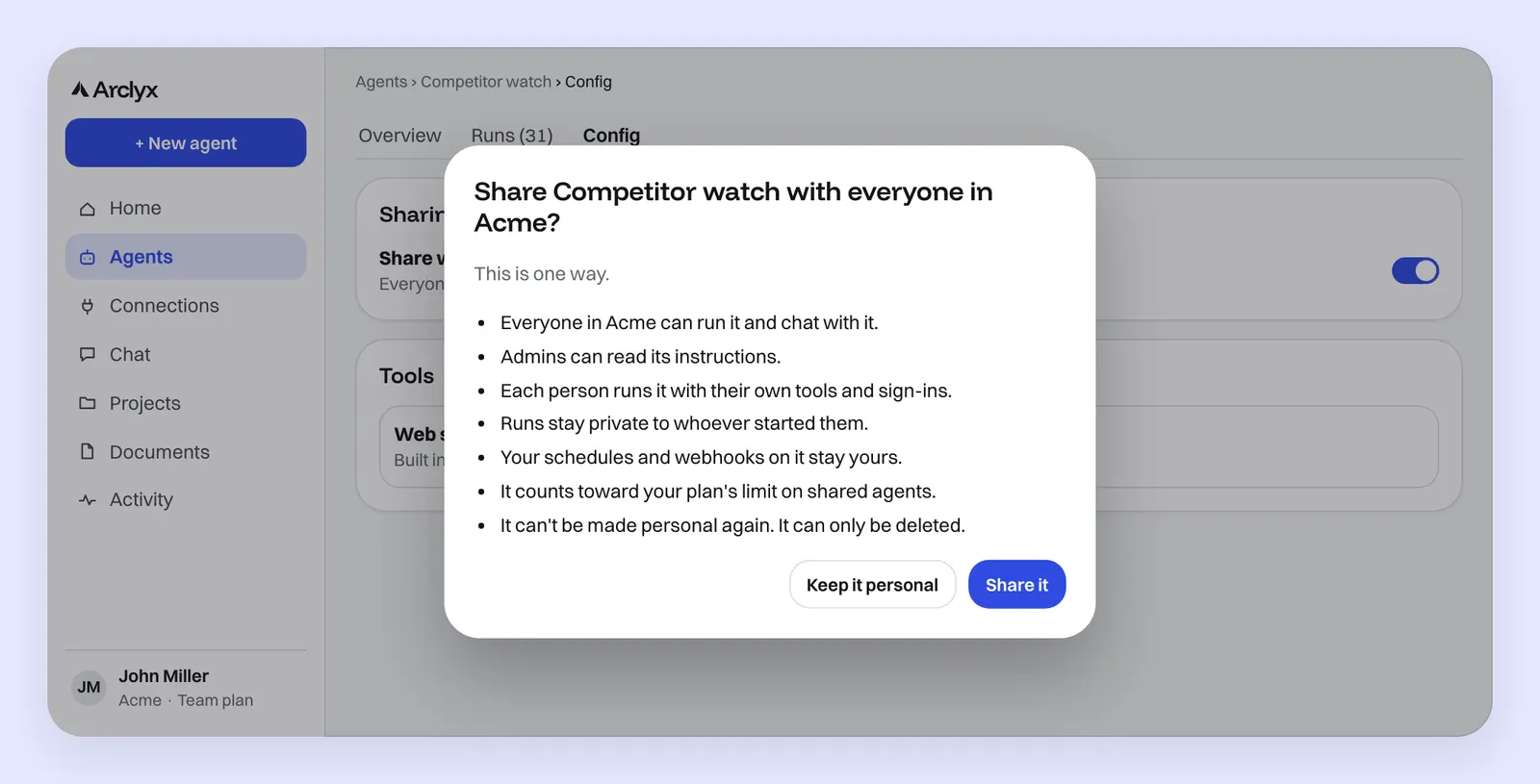
Sharing is one way: a shared agent can't be made personal again, only deleted. Each person who runs it does so with their own tools and sign-ins, and their runs stay private to them. If your Slack workspace requires admin approval for apps, a Workspace Owner approves the app first 2.
How do you ask an agent in a channel?
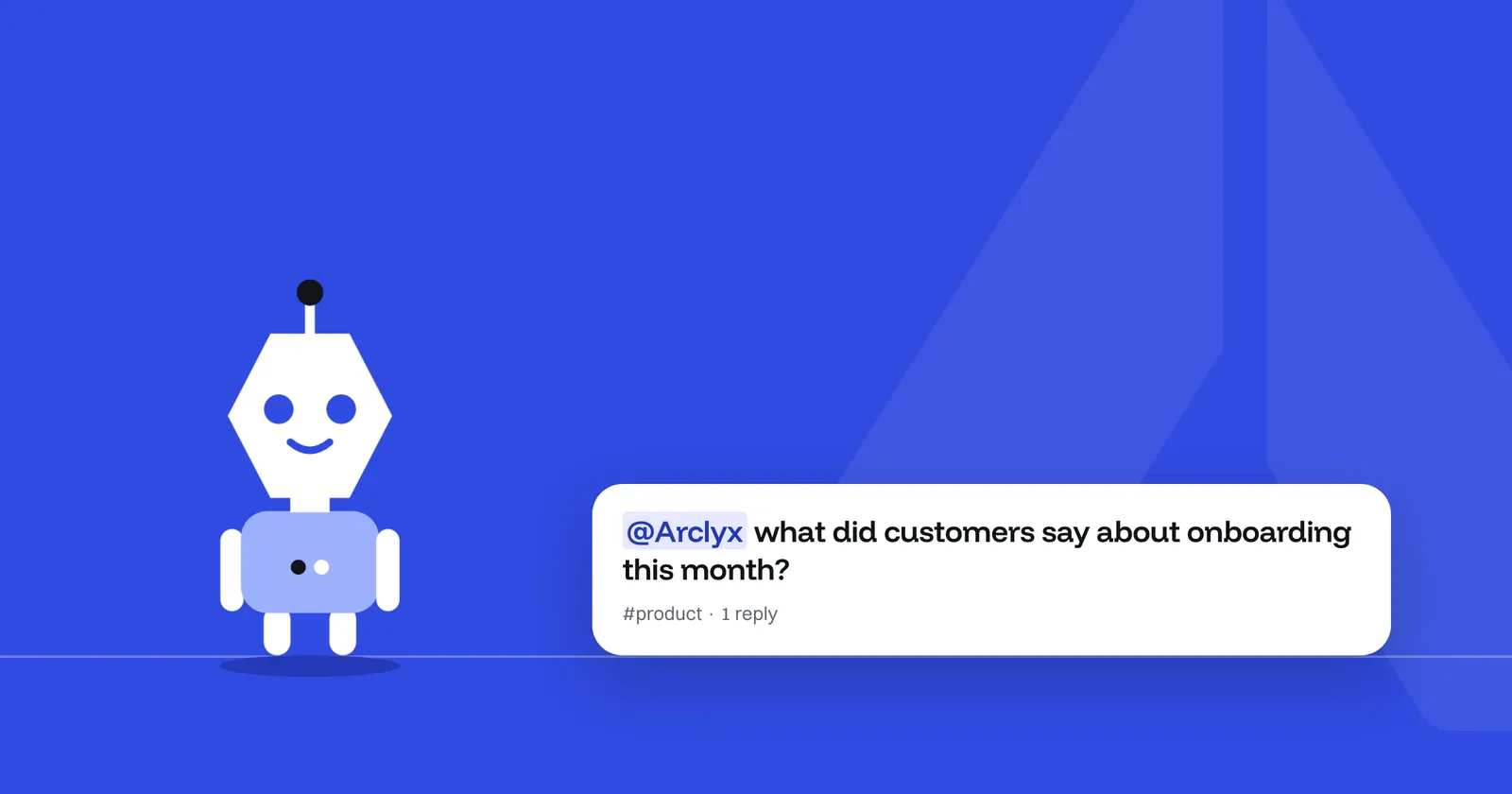
Type @Arclyx and your question in a channel the app has been added to. To ask a particular agent, add that shared agent's @name after it. Arclyx answers in the thread of your message. To follow up, mention it again in the same thread: it remembers your earlier questions there, and never someone else's.
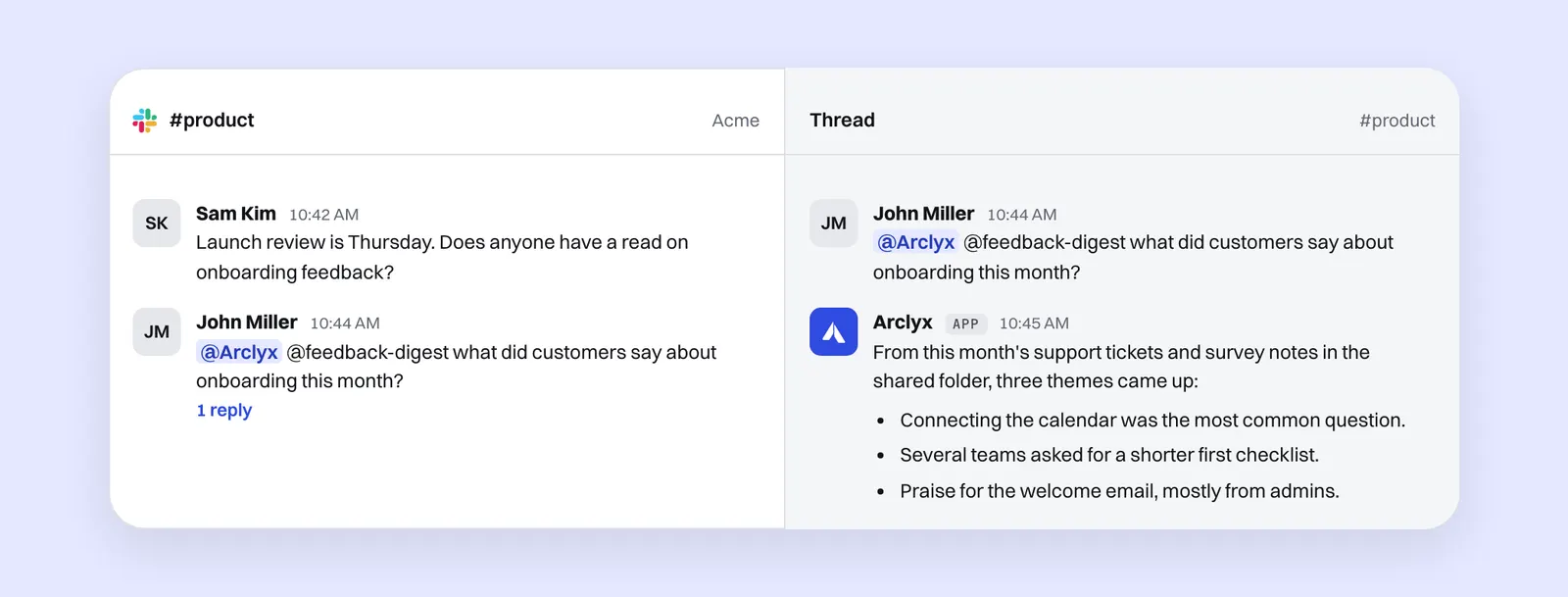
In this example, John asks in #product: "@Arclyx @feedback-digest what did customers say about onboarding this month?" The answer appears in the thread, so the channel stays readable and Sam sees it where the question came up. The Feedback analyst agent does this job on a schedule, and answers when someone mentions it. For policy questions, the Handbook answerer works the same way: people ask it in a channel and it quotes your handbook in the thread.
Each person who asks in a shared thread gets their own Arclyx conversation behind it. One person's history never answers another's question.
Where do the answers go?
A channel question is answered in that message's thread, as one message, once the answer is complete. If something stops the run, such as a plan limit or a question that's too long, only the person who asked sees the reply. A direct message to Arclyx is answered in the conversation, streaming in as it's written.
| You ask | Where the answer goes | Who sees it |
|---|---|---|
| @Arclyx in a channel | The thread under your message, posted once in full | Everyone in the channel |
| @Arclyx when it can't run | A reply in the thread only you can see | Only you |
| A direct message to Arclyx | The same conversation, streamed with a status line | Only you |
| A scheduled agent | The one channel picked on its page, or you directly | That channel, or only you |
The channel answer is posted in one piece on purpose: a run that resets or fails partway never leaves a half answer in front of the channel.
Can an agent post to Slack on a schedule?
Yes. Give the agent a schedule and Slack as a tool, then pick its channel on the agent's Config tab under Slack, or pick "You, as a direct message". Each run posts there and nowhere else. The model can't choose another channel, whatever its instructions or the content it reads say.
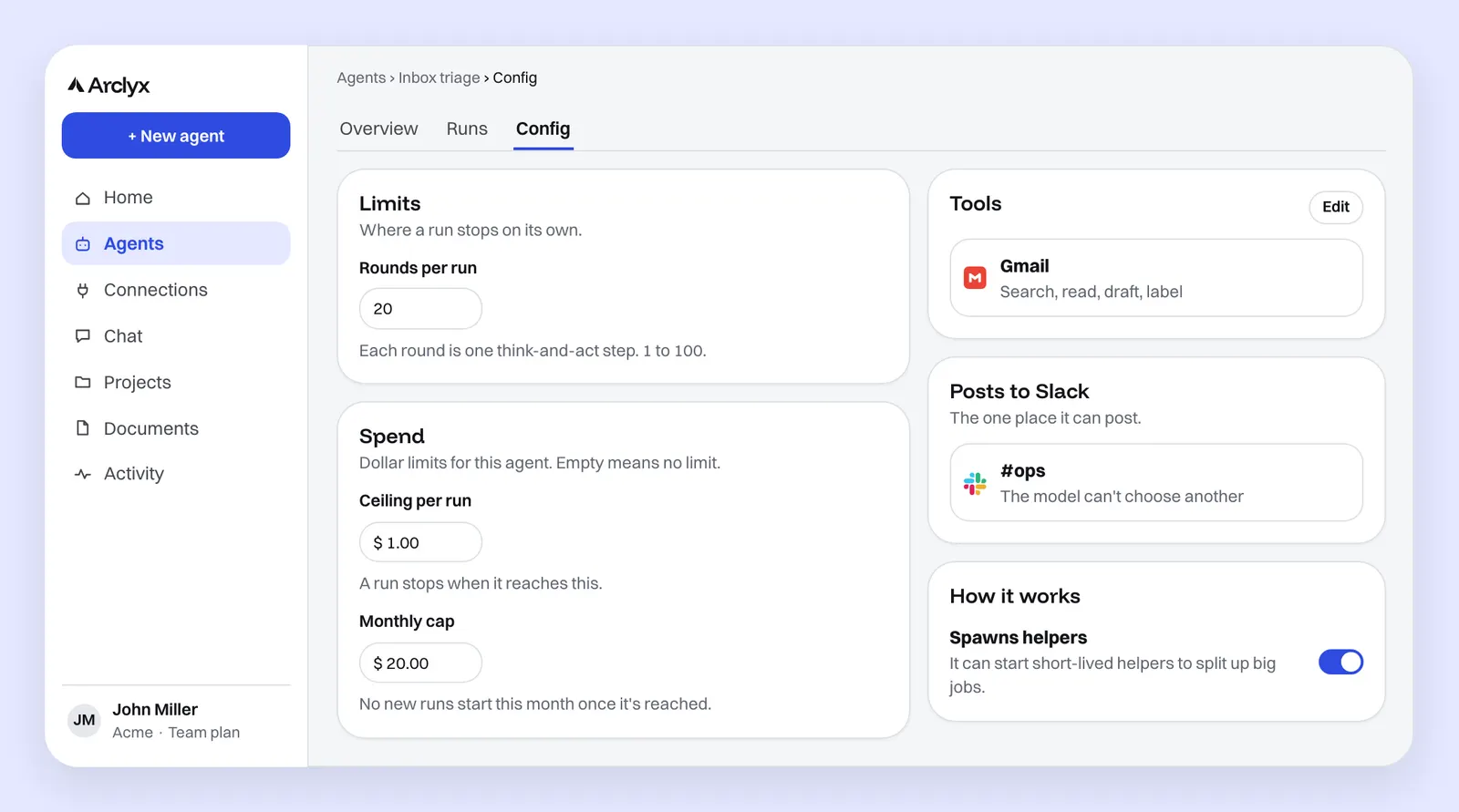
If the channel you pick doesn't have the Arclyx app yet, the page tells you to invite it with /invite @Arclyx first. The Async standup agent works this way: every weekday it writes the team's standup from GitHub and posts it to one channel. After each run, the run's page lists the post under What it produced, with the text as it went out, and marks one that didn't go as Failed. The guardrails page covers the channel and the agent's other limits.
What can a Slack agent see?
In a channel, everyone reads the reply, so an agent works from shared data only: tools the organization connected with shared credentials, the asker's documents minus their personal ones, and the web. Personal connections, private documents, email and personal agents are off. In a direct message, it works with your own tools, as in Arclyx chat.
What changes between a channel and a direct message:
- Tools: in a channel, only connections everyone reaches the same way. Your own Gmail or Calendar connection is never used where others read the answer.
- Documents: in a channel, the documents your access tags allow, minus anything personal. Each person still sees only what their tags allow.
- Agents: in a channel, only agents shared with the workspace can be named or used.
- Email: an agent can't email from a channel run. Its email goes to the person it runs for, and in a channel that isn't a single person.
And what it doesn't see at all: messages that don't mention it. Arclyx isn't subscribed to ordinary channel messages, so a channel's conversation never reaches it unless someone @mentions the app. When an answer needs your own data, the agent is told to suggest a direct message instead. The connectors page covers how each tool is connected.
Slack agent or a Slack workflow: which do you need?
Use a Slack workflow when the steps are the same every time: post a form, route a request, send a reminder. Use an agent when the steps depend on the question or the data: find what customers said about onboarding, check what a competitor changed. Workflows follow the steps you built; agents decide them.
Slack's Workflow Builder automates everyday tasks and processes in Slack, starting from a link, a schedule or an action such as an emoji reaction, and is available on Slack's paid plans 3. It's a good fit for routing and forms. An agent fits work that needs reading and judgement, and both can live in the same channel.
| Slack workflow | Arclyx agent in Slack | |
|---|---|---|
| Starts from | A link, a schedule or a Slack action | An @mention, a schedule, a webhook or Run it now |
| Steps | The steps you built | Decided by the agent for each run |
| Reads | What each step passes along | Shared tools, documents and the web |
| Record | Workflow activity and errors | Every round, tool call and result, per run |
If you're new to agents, start with one that posts a weekly report to a channel, then let the team ask it. Our AI agent tutorial for beginners builds a weekly competitor watch that posts to Slack, and the AI agent vs chatbot guide explains when an agent is worth it at all.
Sources
- Slack — app_mention event (Slack developer docs, checked 23 October 2026). https://docs.slack.dev/reference/events/app_mention
- Slack — Add apps to your Slack workspace (Slack Help Center, checked 23 October 2026). https://slack.com/help/articles/202035138-add-an-app-to-your-workspace
- Slack — Guide to Slack Workflow Builder (Slack Help Center, checked 23 October 2026). https://slack.com/help/articles/360035692513-Guide-to-Slack-Workflow-Builder