Summary
AI agent cost control means limits the agent can't talk its way past, set at three levels: one run, one agent's month and one person. Then you watch where the money goes and change the settings that drive it. This guide shows each limit in Arclyx, where to see spend by agent, model and model call, and which settings lower the bill without making the work worse.
Key Takeaways
- Agents cost more than chat because they loop. Each round sends the job back to the model with everything so far. Anthropic warns that agents' autonomy "means higher costs, and the potential for compounding errors" 1.
- Cap three things. One run, one agent's month and each person. In Arclyx every run is checked against your plan's limits before it starts, and paid plans add a ceiling per run, a monthly cap per agent and a monthly limit per person.
- Limits are settings, not instructions. "Keep it cheap" in a prompt is a request. A ceiling per run stops the run before it goes over, whatever the model wants.
- See spend where it happens. Settings → Your usage shows 30 days by day, by agent and by model; each run's page shows its price and every model call.
- Rounds and the model are the big levers. Fewer rounds per run and the right model for the job cut cost more than any wording change.
- Testing costs money too. A dry run uses your real tools and counts toward your usage, so test the hard cases, not every case.
Why do AI agent costs run away?
AI agent costs run away because an agent works in a loop. Each round it reads the job, the instructions and everything it has found so far, then decides the next step. A run that takes twenty rounds pays for that growing context twenty times, and an agent on a schedule repeats the whole thing every day without anyone watching.
Three things make it worse:
- Long runs. An agent that keeps searching because nothing it finds looks good enough adds rounds, and each round costs more than the last.
- Output tokens. Model providers charge more for what a model writes than for what it reads. On Anthropic's price list, output tokens cost five times as much as input tokens for each current Claude model 2.
- The wrong model. On that one price list, a million input tokens costs anywhere from $0.10 to $10 across current Claude models 2. A small job on the largest model pays for capacity it never uses.
Our post on how much an AI agent costs to run covers the cost layers in depth. This guide is about controlling them.
What should an AI agent budget control?
An AI agent budget should control spend at three levels, each with its own limit: one run, one agent over a month, and one person across all their agents. Each catches a different failure. The run limit catches a loop, the agent limit catches a schedule that runs too often, and the person limit catches a team that grows faster than its budget.
| Level | The limit in Arclyx | At the limit |
|---|---|---|
| Every run | Your plan's limits, checked before it starts | The run doesn't start |
| One run | Ceiling per run (paid plans) | The run stops |
| One run's length | Rounds per run, 1 to 100 | The run ends at its last round |
| One agent | Monthly cap (paid plans) | No new runs that month |
| One person | Monthly limit, set by an admin (paid plans) | Their new runs don't start |
On Free, the plan's daily and monthly limits do the job of the per-agent caps. The guardrails page lists every limit Arclyx enforces outside the model.
How do you cap what one run can spend?
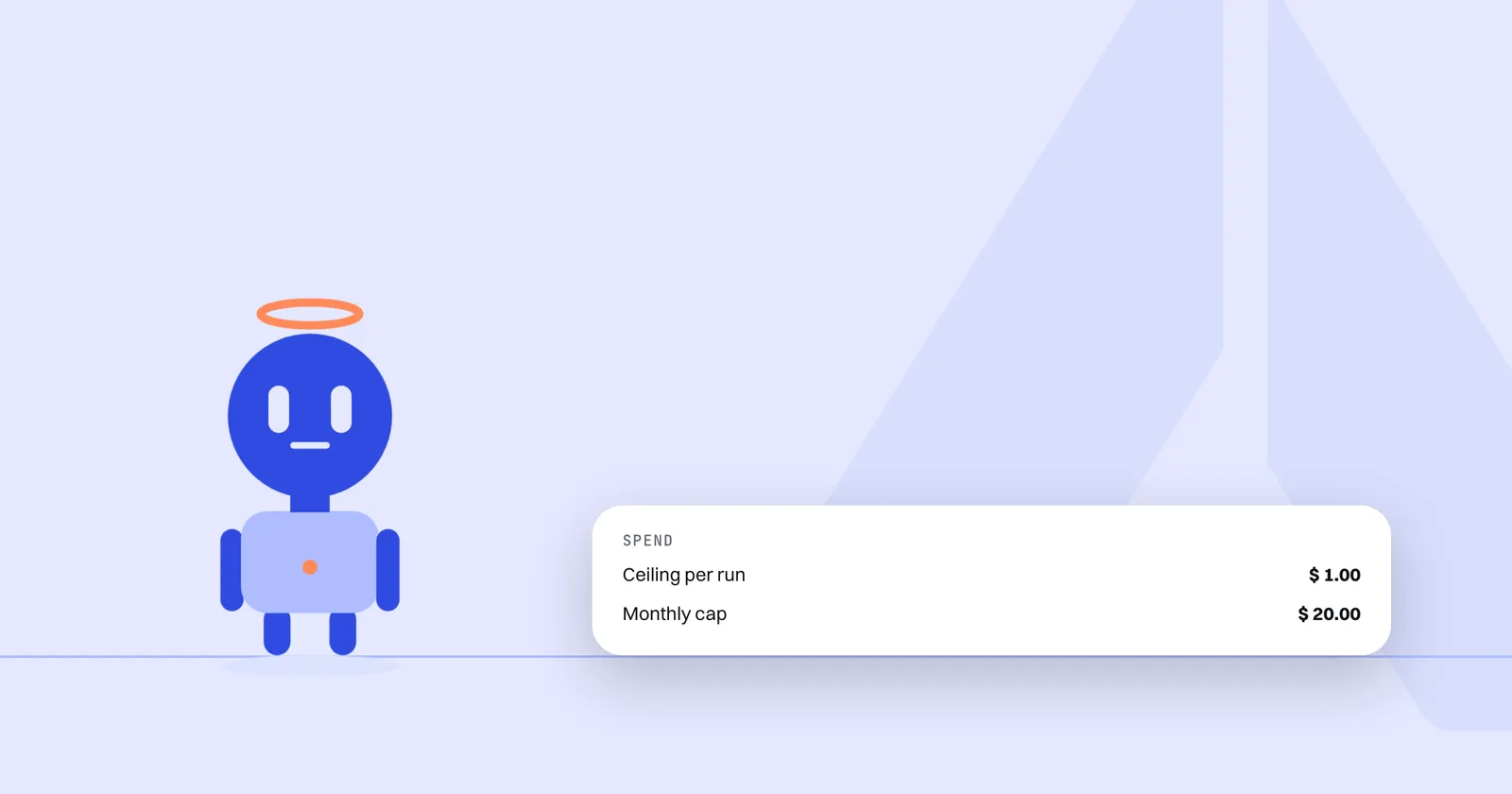
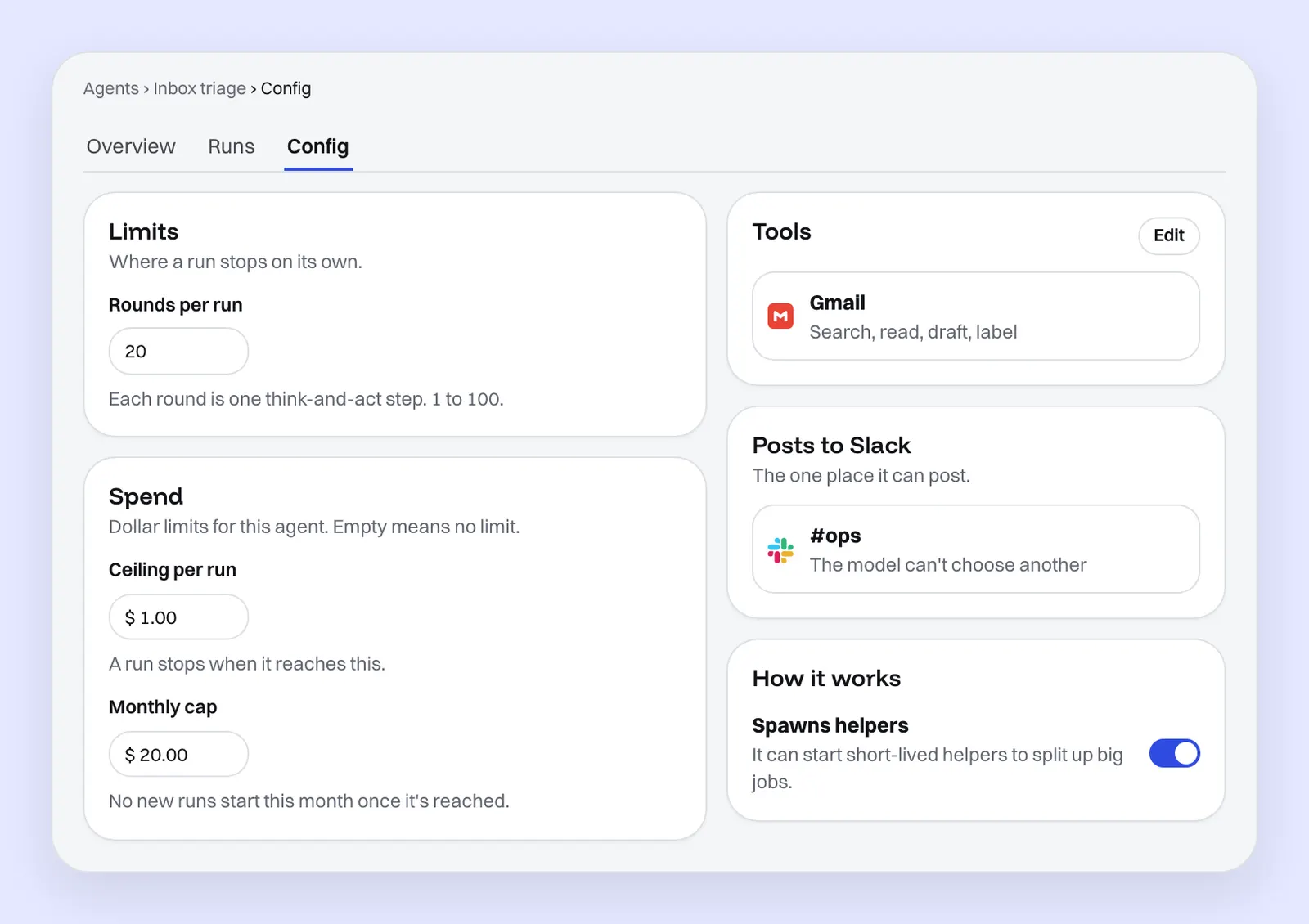
Set a ceiling per run on the agent's Config tab. On paid plans, Spend has two fields, and the first, Ceiling per run, stops a run before it goes over the amount you set. Above it, under Limits, is Rounds per run, which limits how many think-and-act steps a run may take, from 1 to 100. Use both: one caps the money, the other caps the loop.
The ceiling is checked before each model call, not after. Arclyx prices the call against what's left under the ceiling and shortens the reply to fit; when not even a short answer fits, the run stops before the call is sent. Work the agent hands to helpers, as Finance desk does with the reconciliation and KPIs, counts against the same ceiling, so helpers running side by side can't each spend it. The run's page then says it stopped before going over the ceiling, and what was used.
How to pick the numbers:
- Start from real runs. Open the agent's last few runs and note what they cost and how many rounds they took. Set the ceiling a little above the most expensive good run, not at a round number you hope for.
- Leave room for the hard days. A Monday inbox is bigger than a Wednesday one. A ceiling set on the easy day stops the run on the day you need it most.
- Empty means no limit. The app says so under Spend. If you leave a field empty, that agent relies on your plan's limits alone.
How do you cap an agent's month?
Set a monthly cap on the same Config tab. Once an agent's spend for the month reaches it, no new runs of that agent start until the next month, while your other agents keep running. A monthly cap is the limit that catches a schedule set too often or a webhook that fires more than you expected.
A cap stops work, so choose it with the schedule in mind. An agent that runs every weekday at 8 needs a cap that covers about 22 good runs, plus a few runs you start by hand with Run it now. If a cap stops an agent early in the month, that's a signal to look at its runs, not just to raise the number. Our guide on how to debug an AI agent starts from those runs. The AI agent automation page covers schedules, webhooks and how to pause them from one list.
How do you cap each person on a team?
Give each person a monthly spend limit. On paid plans, an admin sets it in Settings → Spend per person, which shows what each person used and their limit. When someone reaches theirs, their new runs don't start until the month resets, and everyone else keeps working. People see their own limit and how close they are on their usage page.
This is the limit that keeps a growing team inside its budget. Without one, a person can spend from the organization's balance freely, so one busy month can use up what the whole team shares.
How do you see where the money went?
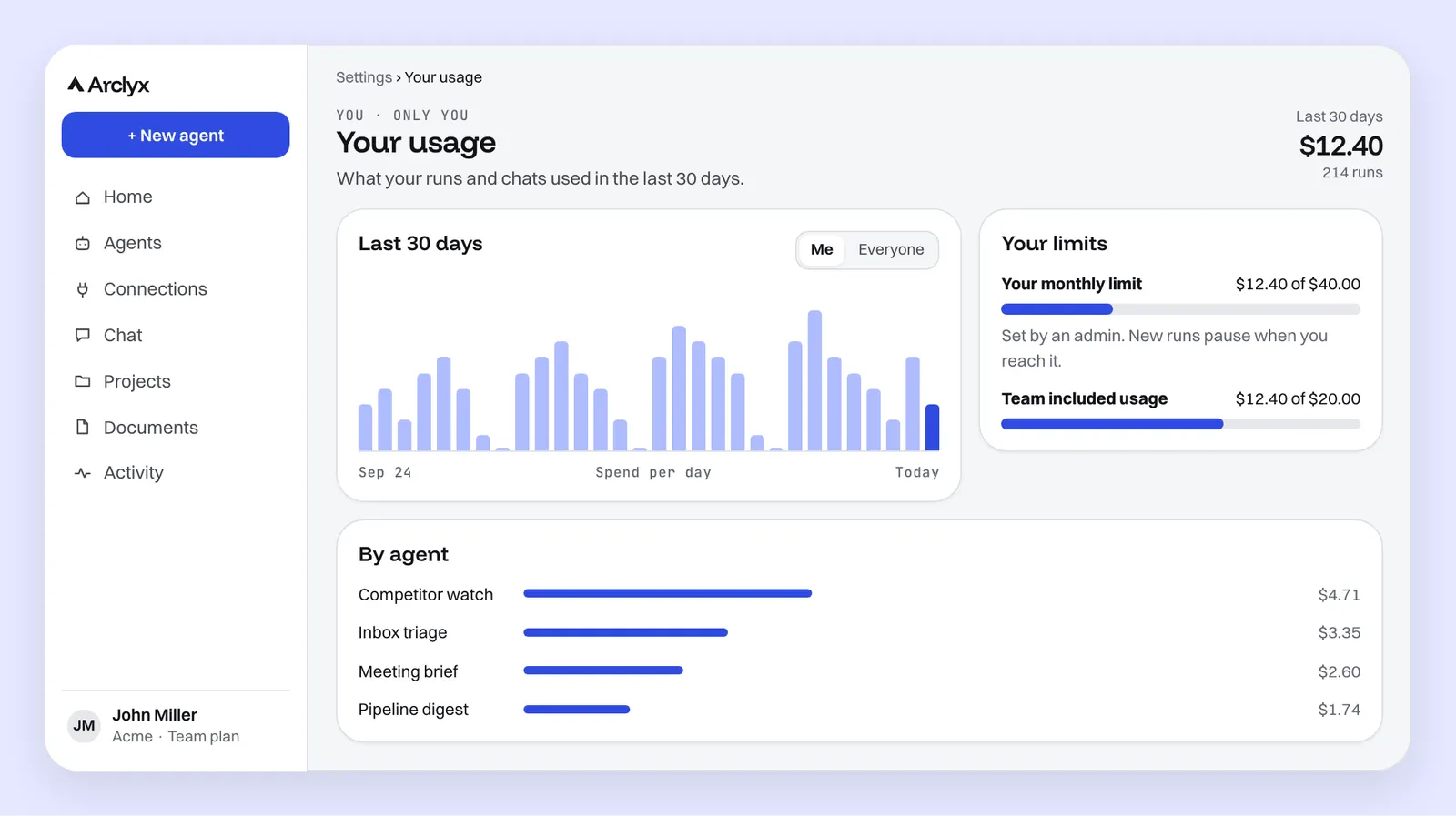
Open Settings → Your usage. It shows the last 30 days as spend per day, meters for each limit you have, and two breakdowns: by agent and by model. Owners and admins can switch from Me to Everyone to see the whole organization. For one run, open its page: the price and a line for every model call.
Read it from the top down:
- The daily chart shows whether spend is steady or spiky. A spike on one day usually points at one run.
- By agent shows which agent drives the bill. It's often not the one you expect.
- By model shows whether an expensive model is doing cheap work.
- The run page shows why. Each run lists how long it took, its rounds, tool calls, tokens and price, then the tokens for every model call: input, cached and output.
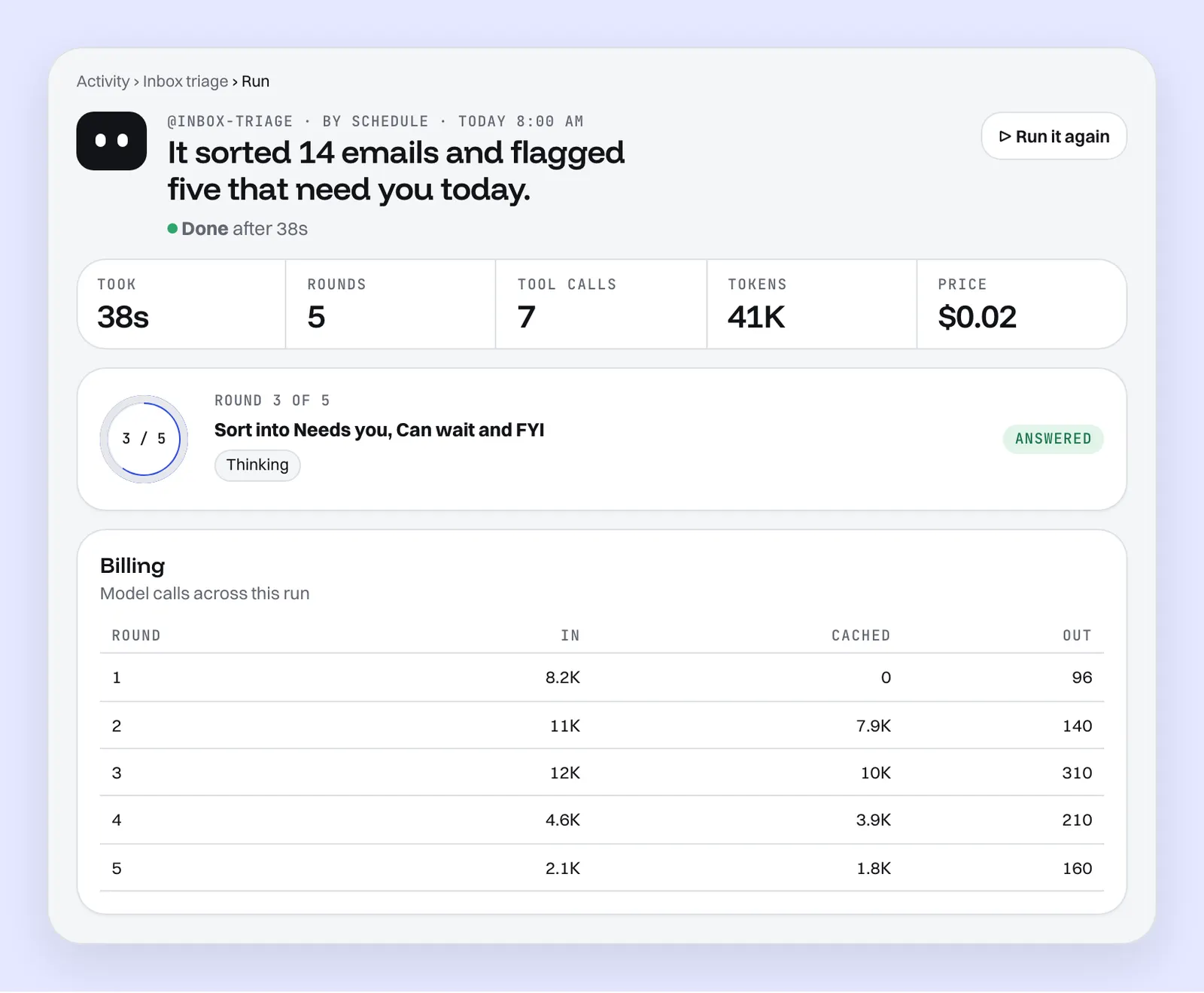
On paid plans every run shows its price and a line for each model call. On Free, runs show tokens, and the usage page shows your share of the allowance. Every run is recorded the same way, scheduled or not; the AI agent observability page shows what else each run keeps.
Which settings cut cost without hurting the result?
Cut rounds, match the model to the job, and give the agent fewer, better tools. These change what a run does, not just what it may spend, so they lower the bill without making the work worse. Check each change with a run you can compare against the last good one.
- Fewer rounds. If good runs finish in six rounds, a limit of twenty only pays for the bad ones. Lower it toward what good runs need.
- The right model. By default Arclyx picks a model for each run. You can choose one for an agent instead, which is worth doing when the by-model breakdown shows a large model on a small, repeated job.
- Fewer tools. Each tool an agent has is something it may try. Remove the ones its job doesn't need with Edit on the Tools panel of the agent's page.
- Leave Longest reply alone. A reply cut off at that limit runs none of its tool calls, so the agent has to try again, and two cut-offs in a row stop the run. So a limit set low to save money can cost you a wasted round instead. Leave it empty for the model's default, or raise it for an agent that writes long reports.
- Clearer instructions. An agent that knows what done looks like stops sooner. Our guide to writing AI agent instructions has a template.
- Cached input. Providers bill input they have seen recently at a fraction of the normal price: a tenth or less for Claude models 3. The Cached column on a run's page shows how much of each call's input that was.
Then test, but test on purpose. Try it on a draft is a dry run: it reads with your real tools, GitHub and HubSpot reads included, and holds anything it would post, send or write. It counts toward your usage like any run. Try the hard cases, such as a full inbox or a missing file, rather than running every case. The test runs page shows what a dry run records.
Sources
- Anthropic — Building effective agents (19 December 2024), section "Agents". https://www.anthropic.com/research/building-effective-agents
- Anthropic — Pricing, "Model pricing" table (Claude Platform docs, checked 23 October 2026). https://platform.claude.com/docs/en/about-claude/pricing
- Anthropic — Prompt caching, "Pricing" (Claude Platform docs, checked 23 October 2026). https://platform.claude.com/docs/en/build-with-claude/prompt-caching